


Upgrade Database Version
This guide explains how to use the Update Version interface to upgrade your database to a newer version. The operation is managed through a MongoDBOpsRequest, which handles the upgrade process safely and tracks its status in your cluster.
1. Getting Started
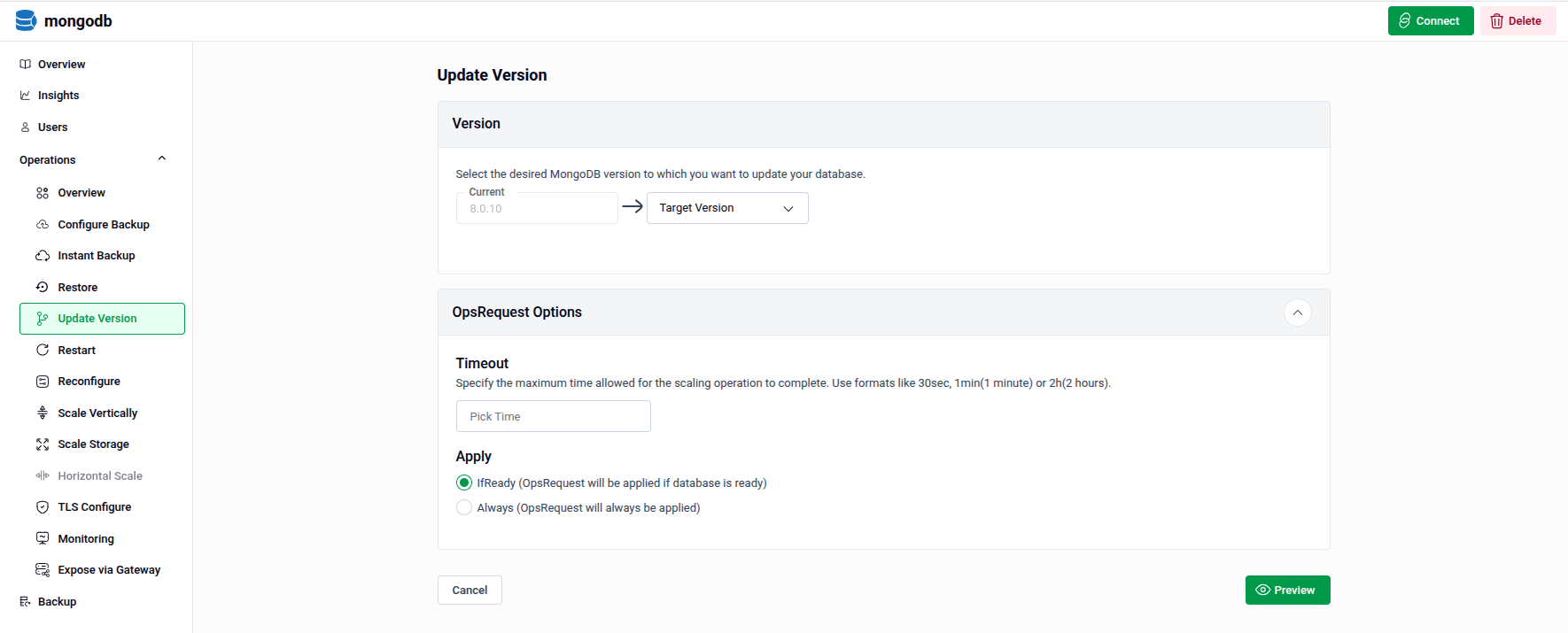
To begin, select Update Version from the Operations section in the left sidebar.
You will land on the Update Version form, which has two main sections:
- Version — Select the target version you want to upgrade your database to.
- OpsRequest Options — Configure advanced settings such as timeout and apply policy.
2. Configuring the Update
2.1 - Selecting the Target Version
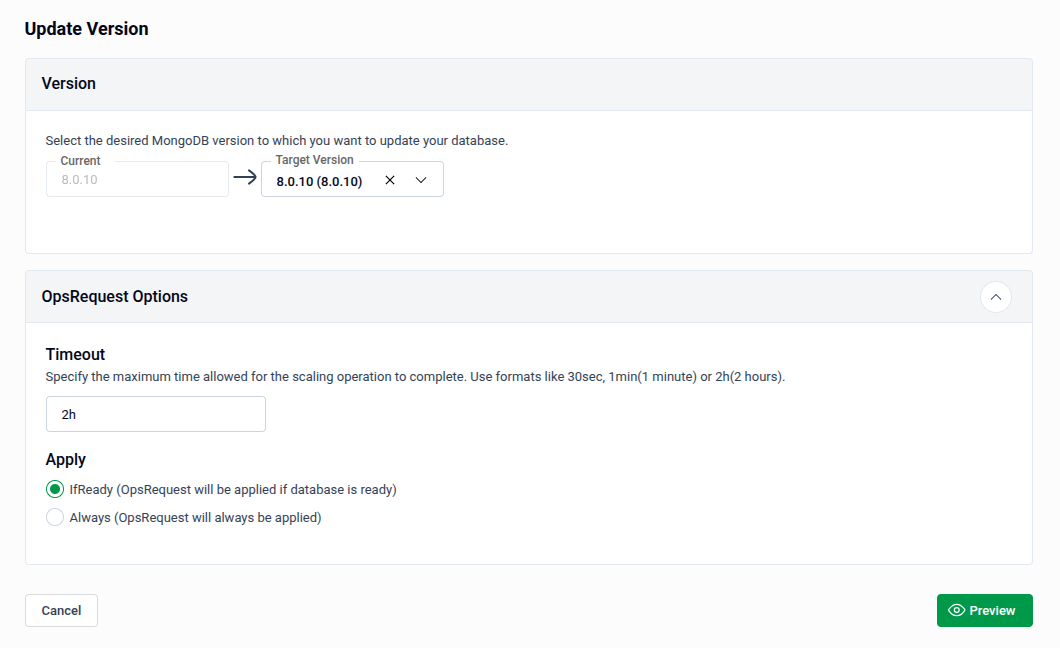
The Version section shows your database's Current version and a Target Version dropdown.
- Target Version: Select the desired version from the dropdown. The current version is displayed on the left for reference.
Note: Only versions compatible with your current database engine are listed in the dropdown.
2.2 - Setting OpsRequest Options
Expand the OpsRequest Options panel to configure how the upgrade operation is executed.
- Timeout: Specify the maximum time allowed for the upgrade to complete. Use formats like
30sec,1min, or2h. Defaults to2hif left unchanged. - Apply: Choose when the OpsRequest should be applied:
- IfReady — The upgrade will only be applied if the database is in a ready state. This is the recommended option.
- Always — The OpsRequest will be applied regardless of the database's current state.
Tip: Use IfReady unless you have a specific reason to force the operation, as it prevents upgrades from running on an unhealthy database.
- Preview: Once your settings are configured, click Preview to review the generated OpsRequest before applying it.
3. Review and Submit
The Preview page displays the full MongoDBOpsRequest manifest that will be applied to your cluster. Review it carefully to confirm all settings are correct.
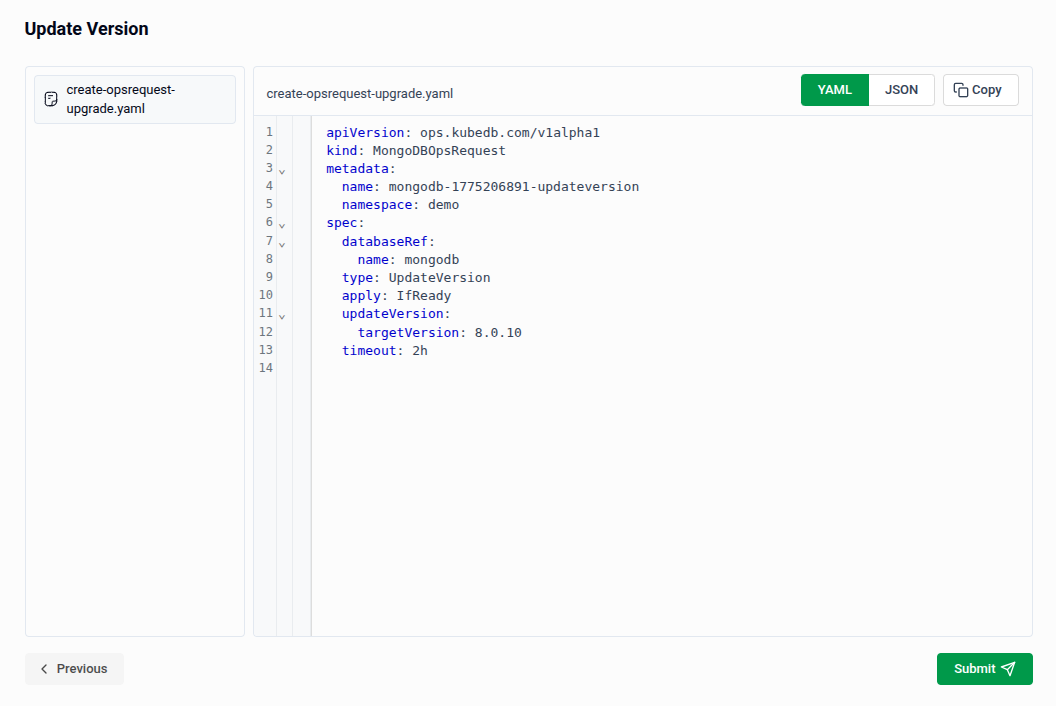
- The manifest is shown in YAML view by default. Use the JSON button to switch to JSON format if preferred.
- Use the Copy button to copy the manifest to your clipboard.
- Click Previous to go back and adjust your settings if needed.
Tip: You can directly edit the YAML or JSON on this page before submitting. This is useful for making precise adjustments beyond what the form fields expose.
- Submit: Once satisfied, click Submit to apply the version upgrade to your database.
Note: After submitting, a
MongoDBOpsRequestof typeUpdateVersionwill be created in your cluster. You can monitor its progress from the OpsRequests section in the sidebar.
Quick Reference
| Action | How to do it |
|---|---|
| Open the Update Version form | Operations → Update Version in the left sidebar |
| Select the target version | Version → choose from the Target Version dropdown |
| Set operation timeout | OpsRequest Options → enter a value in the Timeout field |
| Control when upgrade applies | OpsRequest Options → select IfReady or Always under Apply |
| Review the generated manifest | Click Preview |
| Edit as YAML/JSON before applying | Use the YAML / JSON toggle on the Preview page |
| Apply the upgrade | Click Submit on the Preview page |