


Delete Database
This guide explains how to delete a database instance from the AppsCode console. There are two ways to trigger a deletion — from the Datastore Overview page (bulk or single) or from inside the individual database page. Both methods lead to the same confirmation step.
Warning: Deleting a database is a permanent and irreversible action. Ensure you have a valid backup before proceeding.
1. Getting Started
Navigate to the Datastore section from the left sidebar and select your database engine (e.g., MongoDB). This opens the Datastore Overview page, which lists all database instances in the selected namespace.
2. Deleting from the Datastore Overview
Use this method to delete one or more databases at once directly from the instance list.
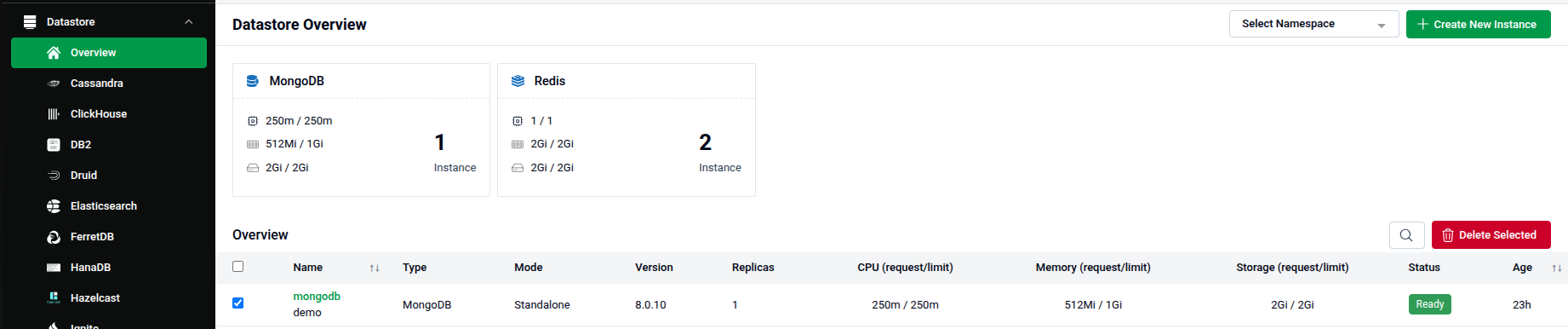
- Select Namespace: Use the Select Namespace dropdown in the top-right to filter instances by namespace if needed.
- Select Instance(s): Check the checkbox next to each database instance you want to delete (e.g.,
mongodb demo). - Delete Selected: Click the red Delete Selected button that appears in the top-right of the Overview table.
- Confirm: A confirmation modal will appear asking "Are you sure you want to delete the selected databases?" Click Yes to proceed, or Cancel to abort.
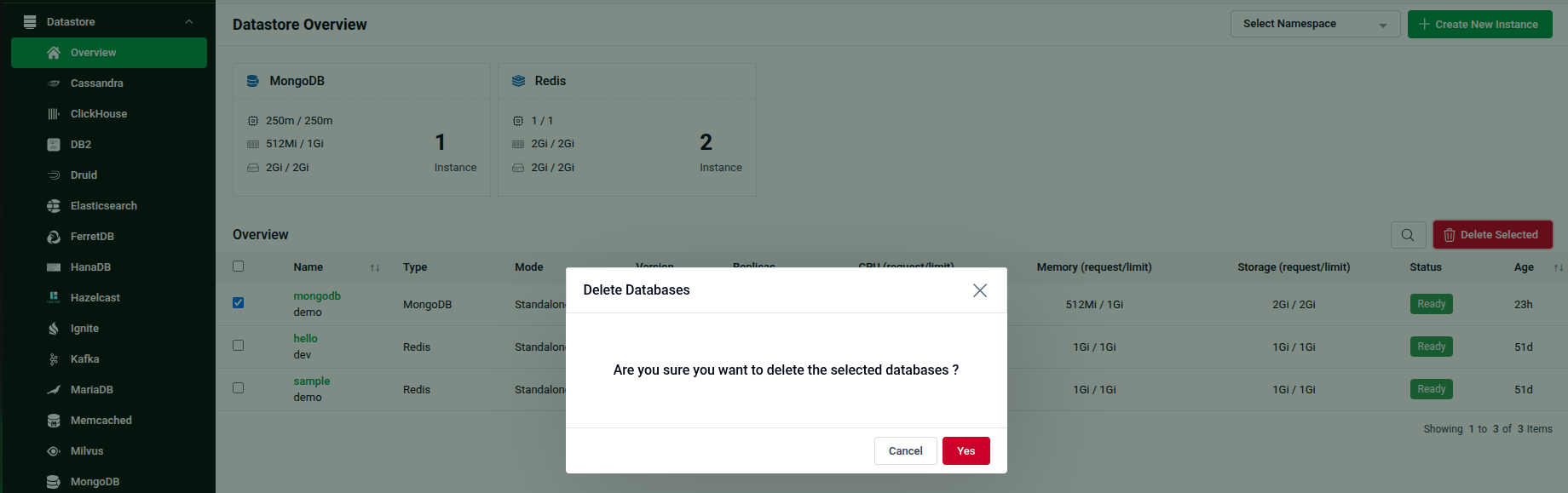
3. Deleting from the Database Detail Page
Use this method to delete a specific database while viewing its detail page.
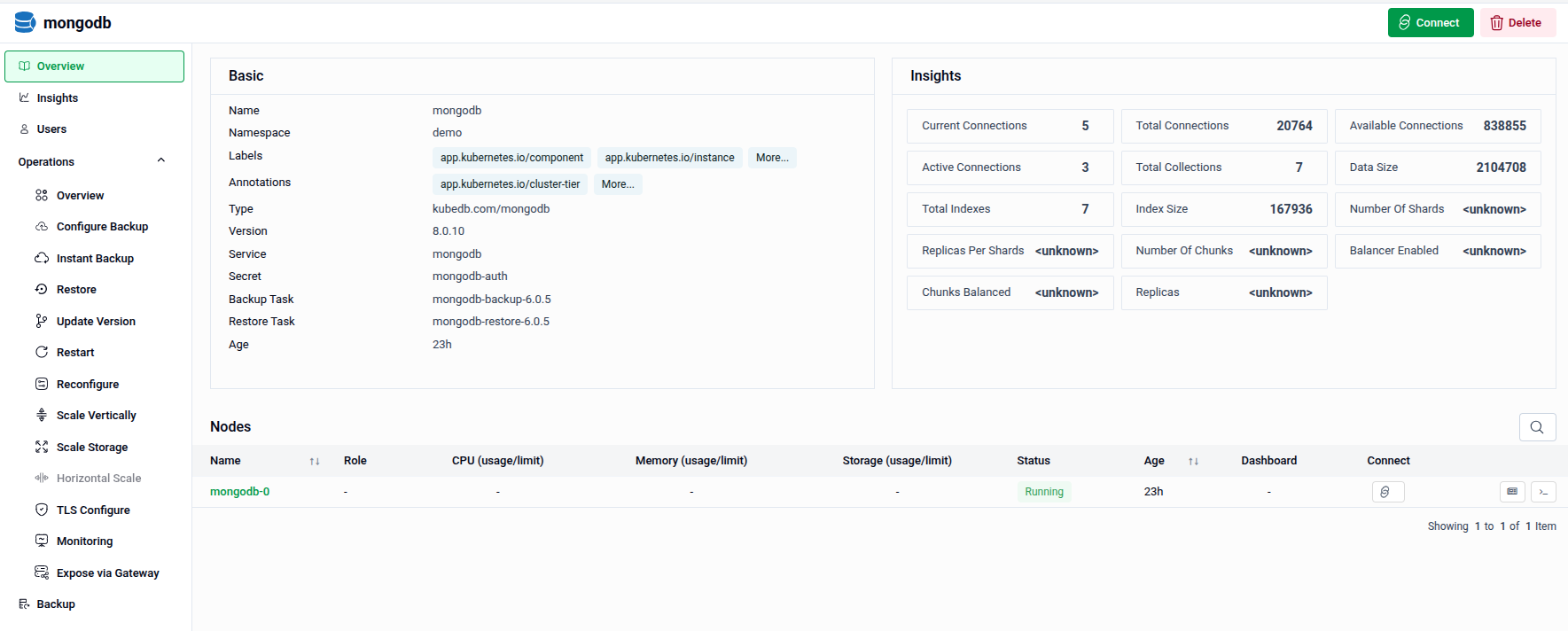
- From the Datastore Overview, click on the name of the database instance you want to delete to open its detail page.
- Delete: Click the red Delete button in the top-right corner of the page.
- Confirm: A confirmation modal will appear showing the name of the database. Click Yes to permanently delete it, or Cancel to abort.
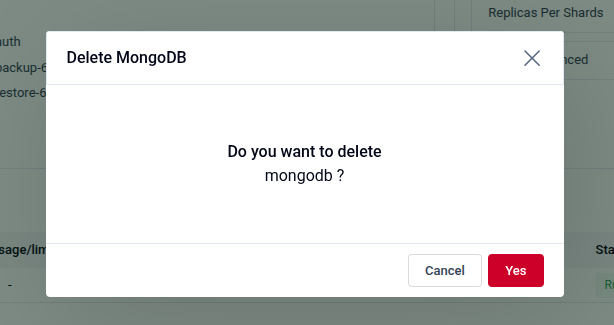
Warning: Clicking Yes immediately and permanently removes the database. There is no undo. Confirm you have a backup before proceeding.
Quick Reference
| Action | How to do it |
|---|---|
| Delete one or more databases at once | Datastore Overview → check instance(s) → Delete Selected |
| Delete a specific database | Open the database detail page → click Delete (top-right) |
| Confirm deletion | Confirmation modal → click Yes |
| Abort deletion | Confirmation modal → click Cancel or ✕ |