


Snapshot
This guide explains how to view and manage Snapshot resources using the AppsCode console. A Snapshot represents a point-in-time backup of a database stored in a backup repository, capturing the complete state of the database at the moment of creation.
1. Getting Started
Navigate to Backups in the left sidebar and select Snapshot. This opens the Snapshot list page showing all database snapshots across your cluster.
2. Snapshot List
The list page displays all Snapshot resources in your cluster. Use the Select Namespace dropdown to filter by namespace, or view detailed information about stored snapshots.
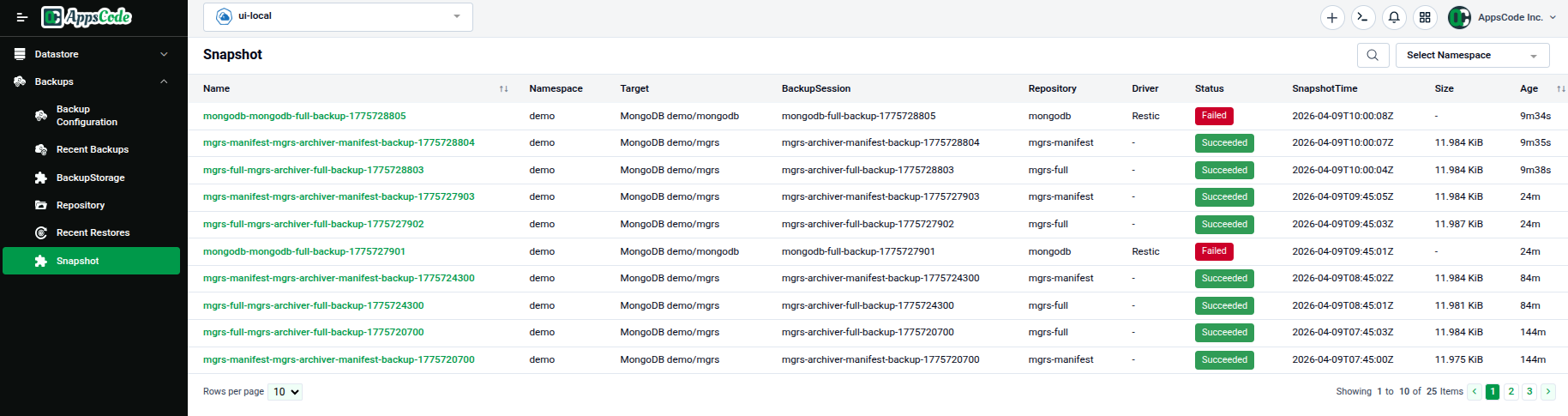
| Column | Description |
|---|---|
| Name | The Snapshot resource name (e.g., snapshot-20240115-143022). |
| Namespace | The namespace where it is deployed. |
| Repository | The Repository resource storing this snapshot. |
| Invoker Kind | The type of resource that created the snapshot (e.g., BackupSession). |
| Invoker Name | The name of the invoker resource. |
| Backend Repository | The backend-level repository path where snapshot data is stored. |
| Creation Timestamp | The exact date and time when the snapshot was created. |
| Deletion Policy | Controls what happens when the snapshot is deleted (e.g., Delete, Retain). |
| Phase | Current status of the snapshot (e.g., Ready, Failed). |
| Verification Status | Whether the snapshot data passed integrity verification (e.g., OK). |
| Age | How long ago the Snapshot was created. |
3. Viewing a Snapshot
Click on any Snapshot name in the list to open its detail page. The detail page shows snapshot metadata, verification status, and the repository it belongs to.
3.1 - Overview
The detail page shows comprehensive snapshot information:
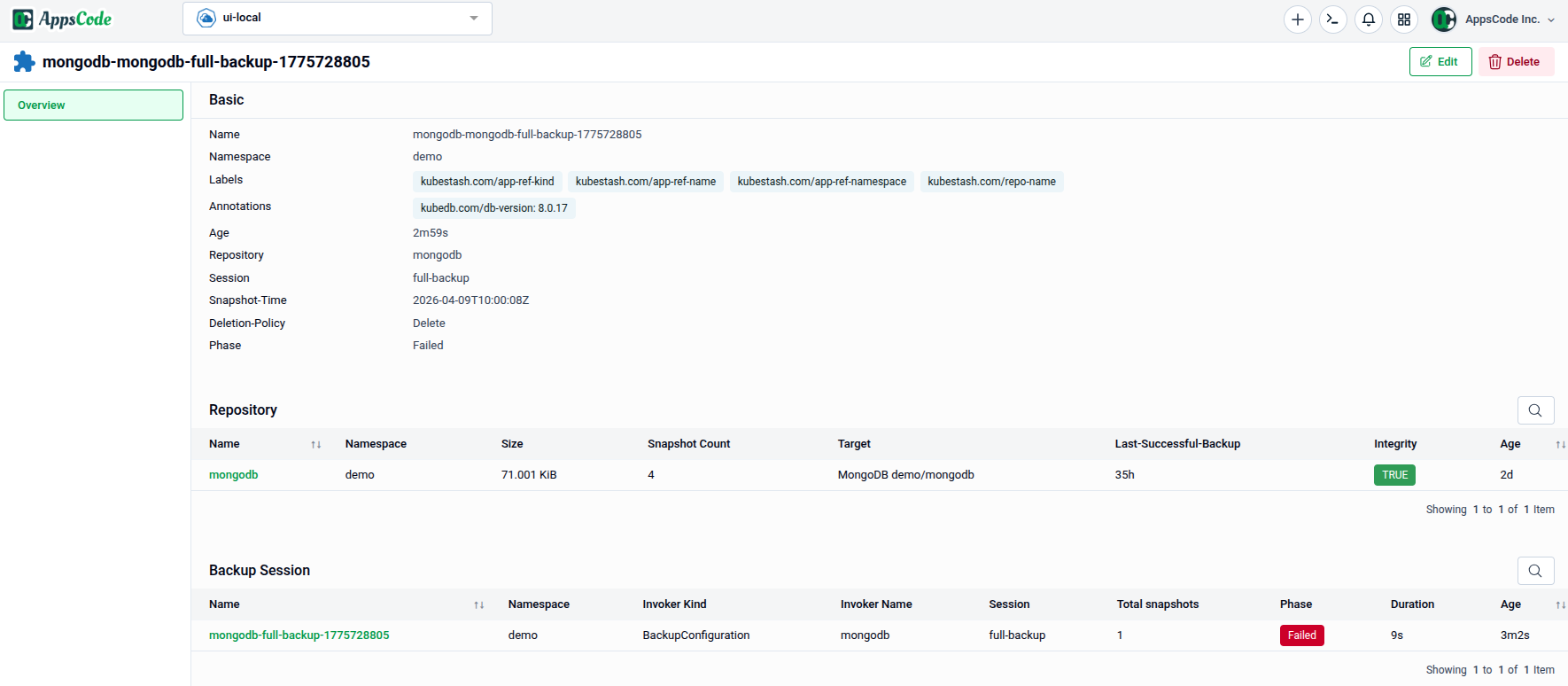
Basic — Core metadata for the snapshot:
| Field | Description |
|---|---|
| Name | The Snapshot resource name. |
| Namespace | The namespace it belongs to. |
| Labels | Key-value labels attached to the resource. |
| Annotations | Key-value annotations including references to invoker and repository. |
| UID | The unique Kubernetes identifier. |
| Phase | Current lifecycle phase (e.g., Ready, Failed, Pending). |
| Verification Status | Integrity verification result (e.g., OK or error message). |
| Deletion Policy | What happens when this snapshot is deleted. |
Repository — The backup repository storing this snapshot:
| Column | Description |
|---|---|
| Name | The Repository resource name. |
| Namespace | Namespace of the repository. |
| BackupStorage | The storage backend used by this repository. |
| Size | Total size of all snapshots in this repository. |
| Target | The database this repository backs up. |
| Status | Current state of the repository. |
| Age | Age of the Repository resource. |
Invoker — The resource that triggered this snapshot's creation:
| Column | Description |
|---|---|
| Kind | The type of invoker (e.g., BackupSession). |
| Name | Name of the invoker resource. |
| Namespace | Namespace of the invoker. |
4. Deleting a Snapshot
To delete a snapshot, click on the snapshot name to open its detail page, then locate the delete action. The delete operation confirms your intention to remove the snapshot from the repository.
4.1 - Delete Confirmation
When initiating a delete operation, a confirmation dialog appears:
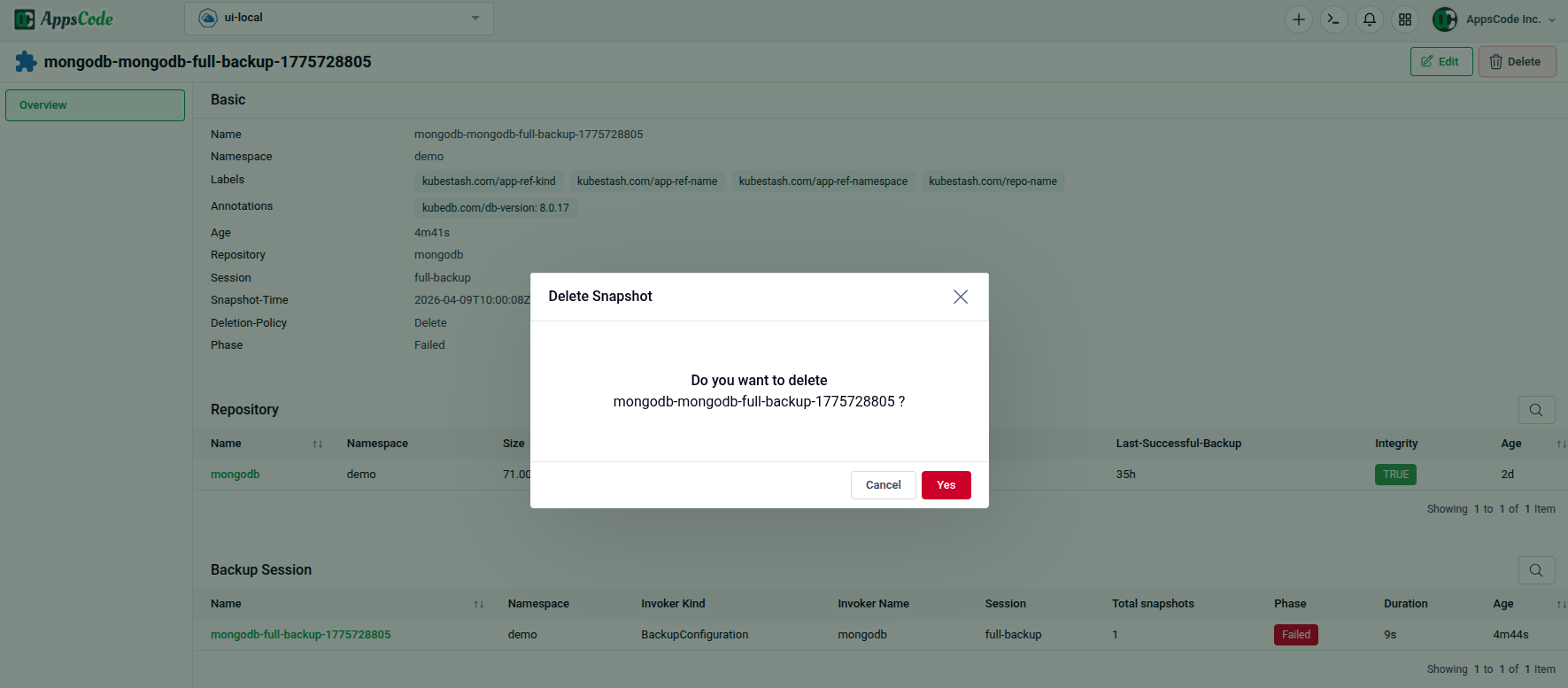
| Field | Description |
|---|---|
| Deletion Policy | Displays the configured deletion policy (e.g., Delete to remove from storage, Retain to keep data). |
| Confirm | Check the confirmation checkbox to acknowledge deletion. |
Warning: Deleting a snapshot is permanent if the deletion policy is
Delete. Ensure you have other backups of your data before proceeding.
5. Quick Reference
| Action | How to do it |
|---|---|
| View all Snapshots | Backups → Snapshot |
| Filter by namespace | Use the Select Namespace dropdown on the list page |
| View snapshot detail | Click on the Snapshot name in the list |
| Check snapshot phase | Detail page → Basic section → Phase field |
| Check verification status | Detail page → Basic section → Verification Status field |
| View repository information | Detail page → Repository table |
| Check deletion policy | Detail page → Basic section → Deletion Policy field |
| View snapshot invoker | Detail page → Invoker table |
| Delete a snapshot | Click snapshot name → locate delete action → confirm deletion |
| Review deletion policy | Detail page before deleting to confirm snapshot data handling |