


Reconfigure Databases
This guide explains how to use the Reconfigure interface to update your database configuration. You can select a new configuration secret, apply a custom configuration directly, or remove an existing configuration — all through a MongoDBOpsRequest that is safely tracked in your cluster.
1. Getting Started
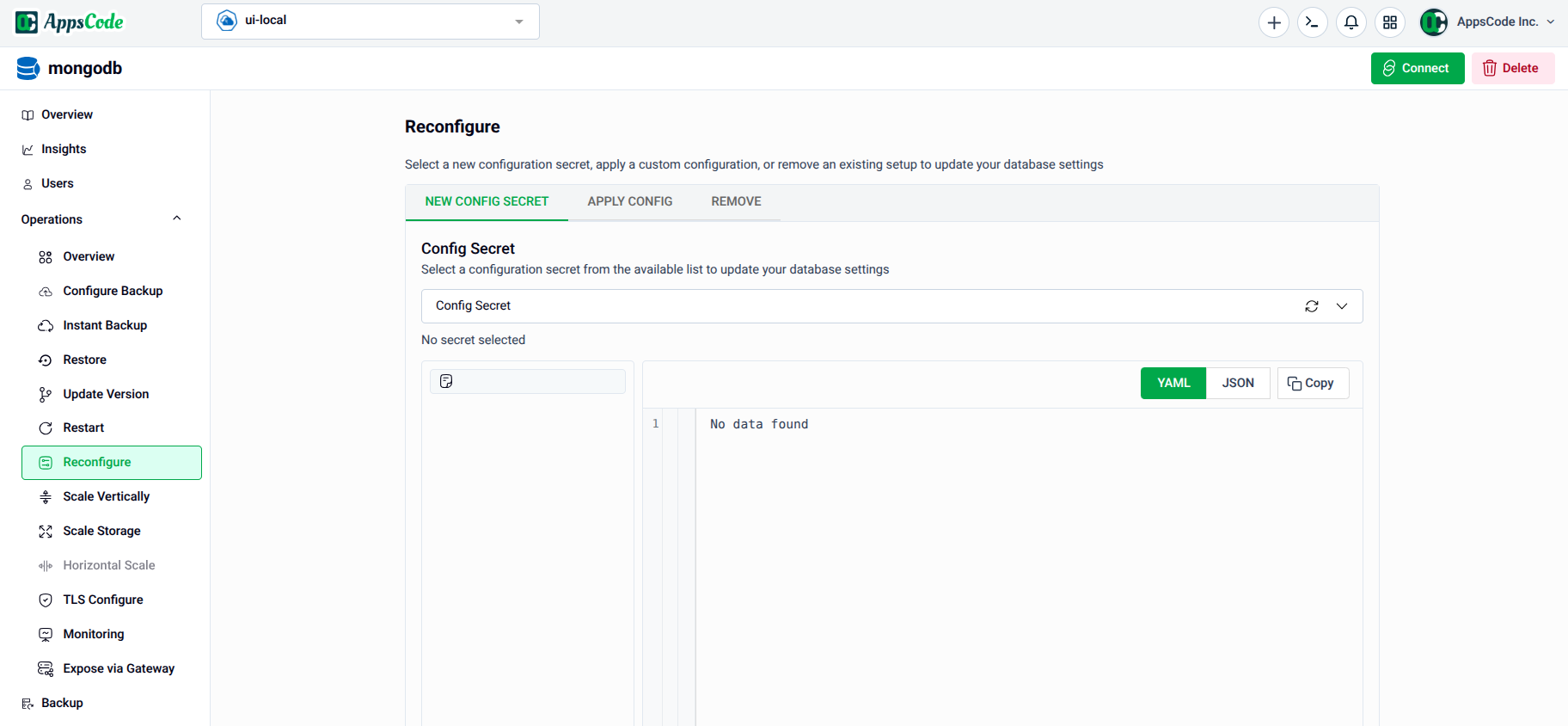
To begin, select Reconfigure from the Operations section in the left sidebar.
You will land on the Reconfigure form, which provides three operation modes via tabs:
- New Config Secret — Select an existing Kubernetes secret or create a new one to use as your database configuration.
- Apply Config — Define custom configuration key-value pairs inline, without needing a pre-existing secret.
- Remove — Remove an existing configuration secret from your database.
2. New Config Secret
The New Config Secret tab lets you attach a Kubernetes secret containing your database configuration. Use this when you already have a configuration secret in your cluster or want to create one from scratch.
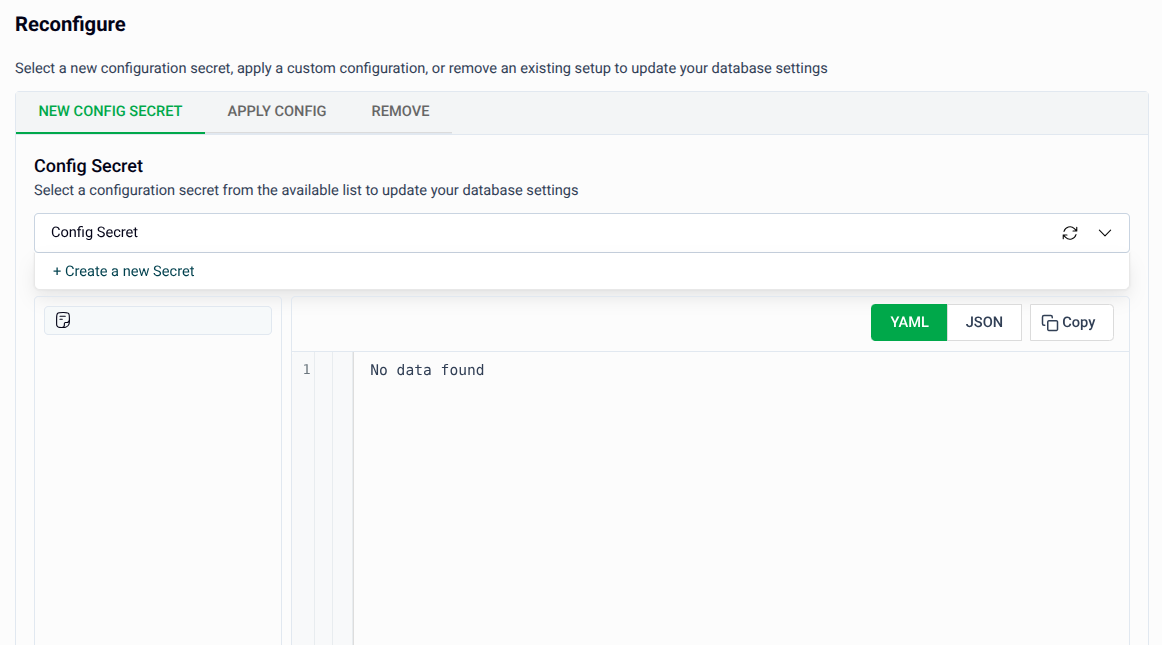
- Config Secret: Click the Config Secret dropdown to select an existing secret from the list.
- Use the refresh icon to reload the available secrets if your list is stale.
- If no suitable secret exists, click + Create a new Secret to open the secret creation form.
- The manifest preview on the right will update to reflect the selected secret. Use the YAML / JSON toggle to switch the view, and the Copy button to copy it to your clipboard.
Creating a New Config Secret
If you choose + Create a new Secret, a form will expand below the dropdown:
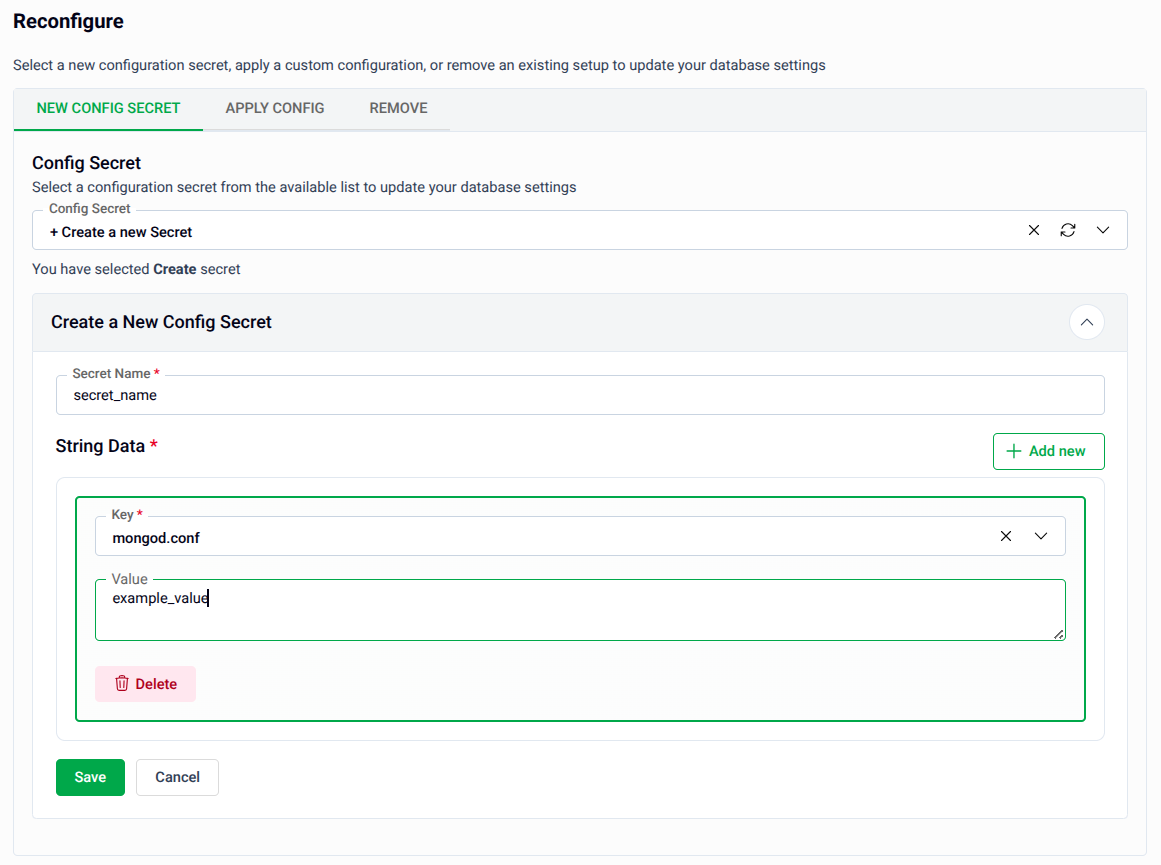
- Secret Name*: Enter a name for the new Kubernetes secret (e.g.,
secret_name). - String Data*: Add one or more key-value pairs that define your configuration:
- Key — The configuration file name (e.g.,
mongod.conf). - Value — The configuration content to apply (e.g.,
example_value). - Click + Add key to add additional key-value pairs.
- Click Delete next to a row to remove an unwanted entry.
- Key — The configuration file name (e.g.,
- Click Save to create the secret, or Cancel to discard the form.
Tip: For MongoDB, the key is typically
mongod.confand the value is the content of the configuration file in YAML format.
3. Apply Config
The Apply Config tab lets you define custom database configuration parameters directly as key-value pairs, without needing a pre-existing secret. These parameters will overwrite the current settings.
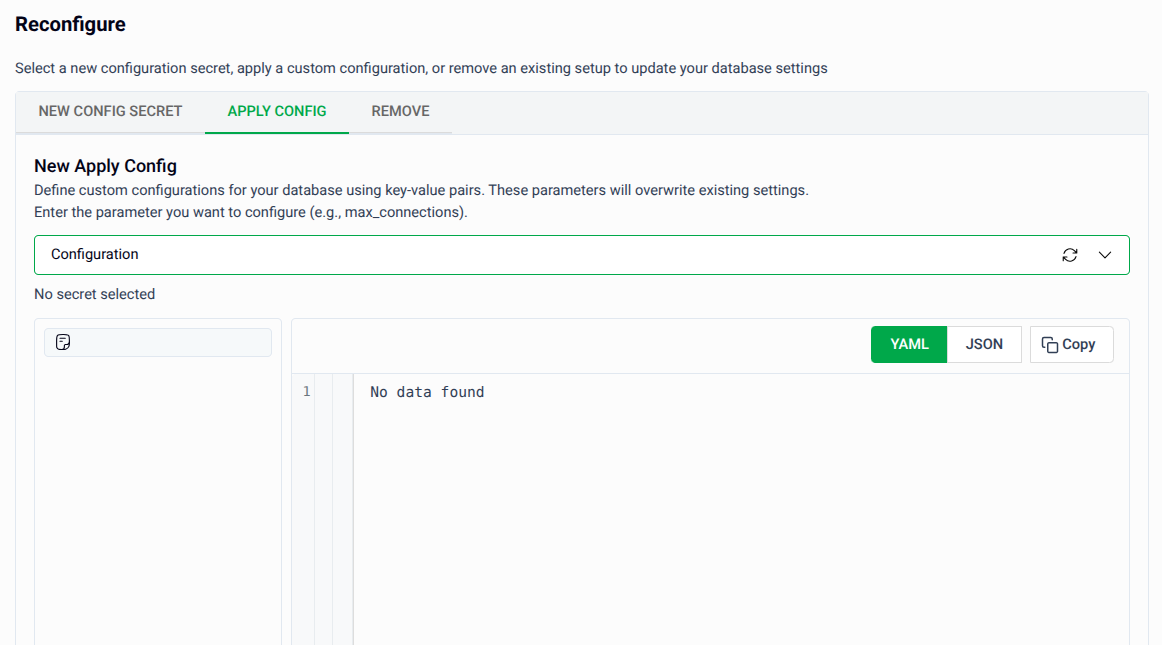
- Configuration: Click the Configuration dropdown to select an existing configuration or leave it unselected to start from scratch.
- Enter the configuration parameters you want to apply (e.g.,
max_connections). Each parameter is defined as a key-value pair and will directly overwrite the corresponding existing setting. - The manifest preview on the right reflects the current configuration. Use the YAML / JSON toggle to inspect it, and the Copy button to save it to your clipboard.
Note: Parameters defined here will overwrite existing values in the current configuration. Review the preview carefully before submitting.
4. Remove
The Remove tab lets you detach and remove an existing configuration secret from your database, reverting it to its default settings.
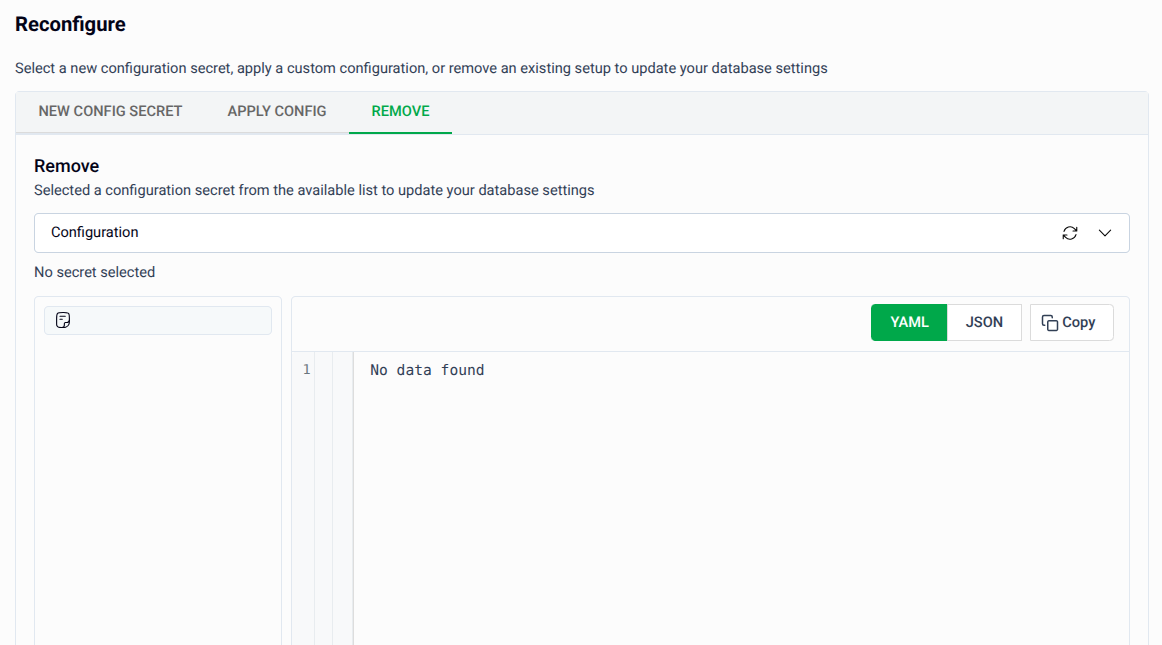
- Configuration: Click the Configuration dropdown and select the configuration secret you want to remove.
- Review the generated manifest in the preview panel on the right to confirm the correct secret is being targeted.
- Once satisfied, proceed to submit the operation.
Warning: Removing a configuration secret will cause your database to revert to its default configuration on the next restart. Ensure this is the intended behavior before submitting.
5. Review and Submit
After configuring any of the three tabs, click Preview to review the generated MongoDBOpsRequest manifest before applying it.
- The manifest is shown in YAML view by default. Use the JSON button to switch formats.
- Use the Copy button to copy the manifest to your clipboard.
- Click Previous to go back and adjust your settings if needed.
Tip: You can directly edit the YAML or JSON on the Preview page before submitting. This is useful for making precise adjustments beyond what the form fields expose.
Once satisfied, click Submit to apply the reconfiguration.
Note: After submitting, a
MongoDBOpsRequestof typeReconfigurewill be created in your cluster. You can monitor its progress from the OpsRequests section in the sidebar.
Quick Reference
| Action | How to do it |
|---|---|
| Open the Reconfigure form | Operations → Reconfigure in the left sidebar |
| Use an existing config secret | New Config Secret tab → select from Config Secret dropdown |
| Create a new config secret | New Config Secret tab → + Create a new Secret → fill in name and key-value pairs |
| Apply inline configuration | Apply Config tab → select or define parameters in the Configuration dropdown |
| Remove a configuration secret | Remove tab → select the secret from the Configuration dropdown |
| Review the generated manifest | Click Preview |
| Edit as YAML/JSON before applying | Use the YAML / JSON toggle on the Preview page |
| Apply the reconfiguration | Click Submit on the Preview page |