


Managing User Accounts
As a site administrator, you can view all registered user accounts and create new ones from the User Accounts section.
1. View All Users
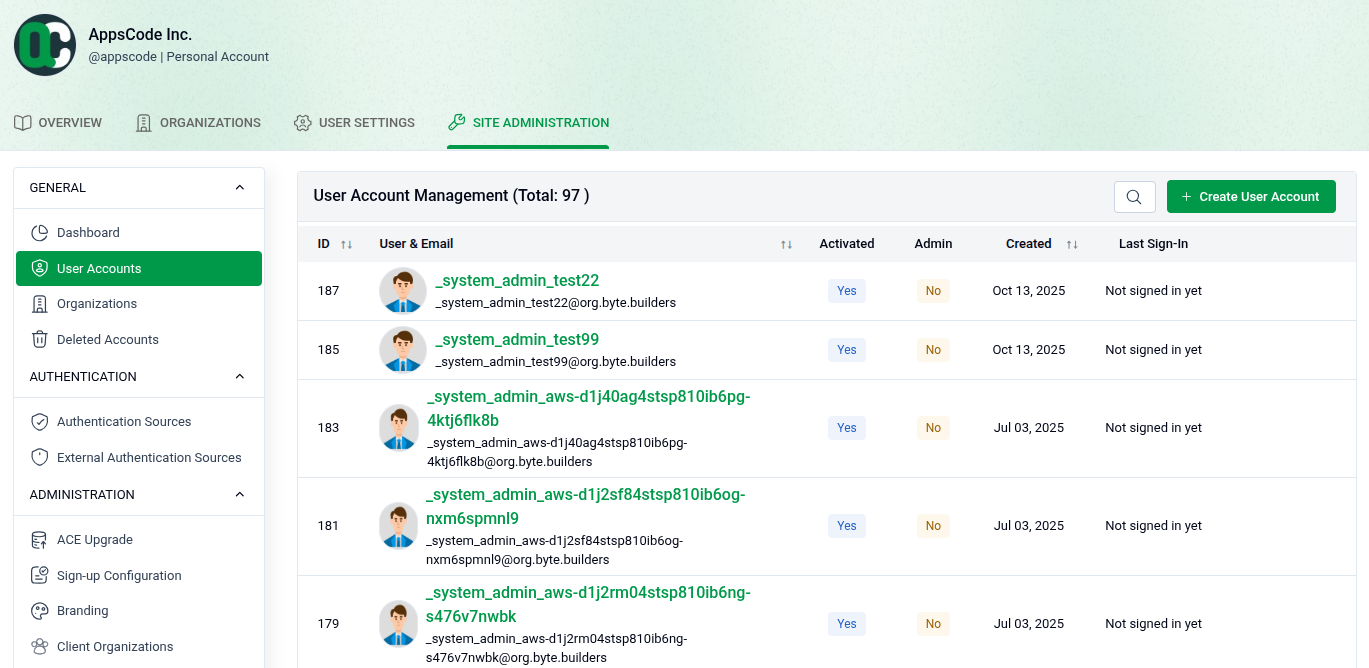
Go to SITE ADMINISTRATION > User Accounts to see the full list of registered accounts.
- Total Count: The page header shows the total number of registered users (e.g., Total: 97).
- User Details: Each row shows the user's ID, username, email, activation status, admin status, creation date, and last sign-in.
- Actions: Each user has Edit and Delete buttons. Use Delete to permanently remove a user, or Edit to update their details.
- Create: Click Create User Account in the top right to add a new user.
2. Create a New User Account
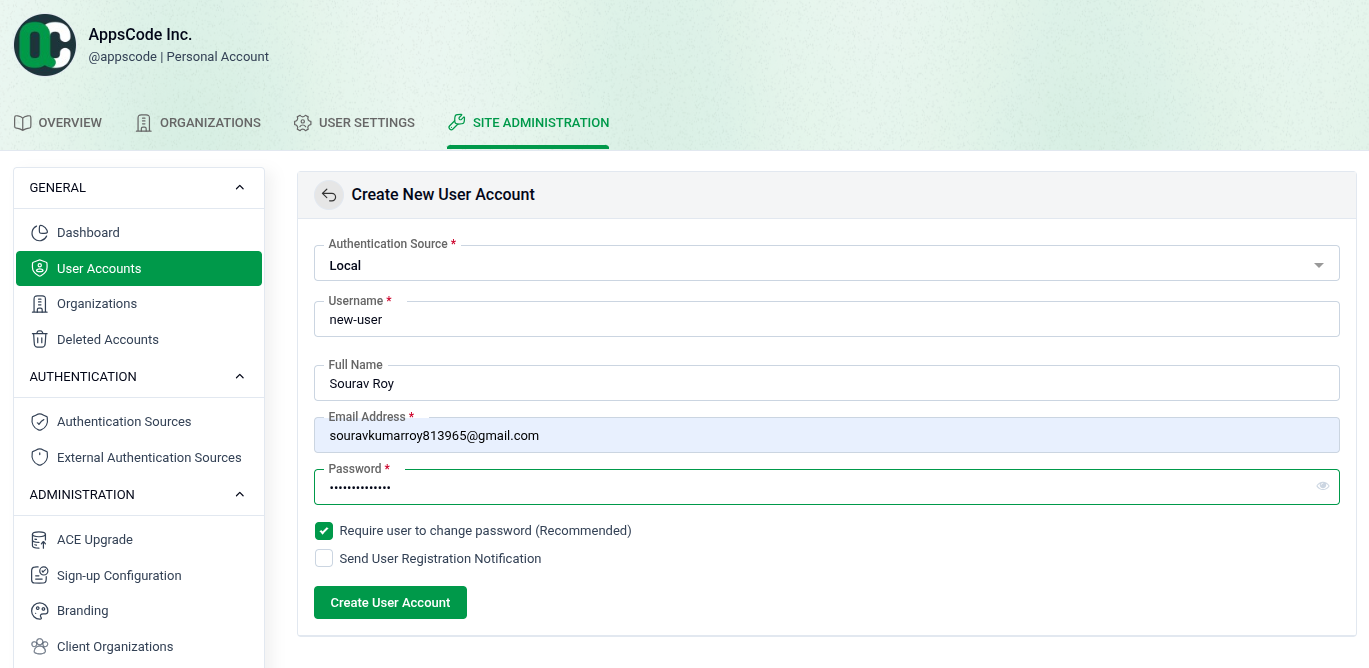
Click Create User Account to open the new user form.
- Authentication Source: Select the login method (e.g., local).
- Username: Enter a unique username.
- Full Name: Provide the user's full name.
- Rescue Email: Enter an email address for account recovery.
- Password: Set an initial password for the account.
- Require Password Change: Check this option (recommended) to prompt the user to change their password on first login.
- Create: Click Create User Account to finish.